
Was it really that long ago? Have 4 years passed so fast? That is around the last time I had to install a new Windows 2003 Server from scratch on a Dell PowerEdge server. Back then it was a Power Edge 1850, yesterday it was a 1950. Pretty much the same history: Windows setup can't find the hard-disks and therefore aborts the installation.
4 years back I simply used a diskette with the LSI Logic drivers for SAS disk and of course I had this diskette ready on my desk for future use. Meanwhile I am at another company and all my hardware-preparations (CD's and diskette's) are gone. And now the bad news: The diskette link on the Dell site has disappeared! But here's what to do now, in 2010:
1. Download the Dell USB Key F6 Driver Utility, v.1.2.4, A08 (or newer) and install it (e.g. into C:\Program Files\Dell\USBKeyPrepF6).
2. Download the Dell Driver (not Firmware!!) for your SAS Raid controller from. This is in most cases the PERC 5/i or 6/i depending on your server model. The easiest method is to go to http://support.dell.com, search your server model, select your wanted operating system (watch out between 32bit and 64bit!) and open the section SAS Raid Controller. Then click on the 'Dell - Driver' link and select the Hard Drive version of the driver. To help you find it quicker:
Windows 2003 32bit: DELL_MULTI-DEVICE_A07_R211422.exe
Windows 2003 64bit: DELL_MULTI-DEVICE_A07_R211424.exe
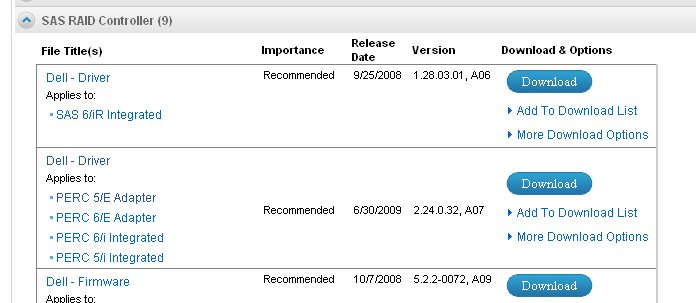
3. Execute the downloaded driver in point 2. A self-extract setup will launch and select the following folder to extract the files into: C:\Program Files\Dell\USBKeyPrepF6\Files (depending where you have installed the Dell Utility in point 1).
4. Now depending on your PERC version (which you can see on your boot screen of the server) you might need to change the file :\Program Files\Dell\USBKeyPrepF6\Files\txtsetup.oem. Follow the table below for which cases the line starting with 'scsi =' has to be changed:
Storage Controller TXTSETUP.OEM needs to be changed?
Dell SAS 5/E Adapter No change needed
Dell SAS 5/i Integrated No change needed
Dell PERC 5/E Adapter Change to: scsi = PERC_32
Dell PERC 5/i Integrated Change to: scsi = PERC_32
Dell PERC 6/E Adapter No change needed
Dell PERC 6/i Integrated No change needed
LSI Logic CERC ATA 100 Change to: scsi = PERC32
LSI Logic PERC 4/DC Change to: scsi = PERC32
LSI Logic PERC 4/Di Change to: scsi = PERC32
LSI Logic PERC 4/SC Change to: scsi = PERC32
LSI Logic PERC 4e/DC Change to: scsi = PERC32
LSI Logic PERC 4e/Di Change to: scsi = PERC32
LSI Logic PERC 4e/Si Change to: scsi = PERC32
LSI Logic PERC3/DC Change to: scsi = PERC32
LSI Logic PERC3/DCL Change to: scsi = PERC32
LSI Logic PERC3/QC Change to: scsi = PERC32
LSI Logic PERC3/SC Change to: scsi = PERC32
LSI Logic LSI2032 No change needed
Dell SAS 5x/6x Controller No change needed
Adaptec U320 HostRAID Controller No change needed
Adaptec CERC SATA 2s Controller No change needed
Adaptec 39320A Controller No change needed
Adaptec 39320A Leadfree Controller No change needed
5. Now plug a USB memory stick up to 16GB into your computer and launch USBKeyPrepF6.exe. Warning: All the data on the memory stick will be deleted. The utility copies the files and formats the USB stick in a special way, which makes the stick able to be seen like a virtual floppy drive when booting on a Dell server. Don't worry, when you can't access the stick anymore by Windows, that's normal now.
6. Plug the memory stick in your Power Edge server and boot it. You have of course also inserted the Windows 2003 installation CD. So you boot from the CD and when Windows setup asks you at the very begin to hit the F6 key (for additional drivers) then hit it. After loading some drivers, setup is now asking if it should look for additional drivers. Hit the 'S'-key to search and the PERC drivers will be found on the plugged memory stick.
That's it! :-)
Eric from USA wrote on Oct 9th, 2015:
Thank you for your help! This is the solution I have been looking for a long time. Also this did work with a 64GB USB 3 drive as info. Just Windows never recognizes it anymore.

AWS Android Ansible Apache Apple Atlassian BSD Backup Bash Bluecoat CMS Chef Cloud Coding Consul Containers CouchDB DB DNS Database Databases Docker ELK Elasticsearch Filebeat FreeBSD Galera Git GlusterFS Grafana Graphics HAProxy HTML Hacks Hardware Icinga Icingaweb Icingaweb2 Influx Internet Java KVM Kibana Kodi Kubernetes LVM LXC Linux Logstash Mac Macintosh Mail MariaDB Minio MongoDB Monitoring Multimedia MySQL NFS Nagios Network Nginx OSSEC OTRS Office PGSQL PHP Perl Personal PostgreSQL Postgres PowerDNS Proxmox Proxy Python Rancher Rant Redis Roundcube SSL Samba Seafile Security Shell SmartOS Solaris Surveillance Systemd TLS Tomcat Ubuntu Unix VMWare VMware Varnish Virtualization Windows Wireless Wordpress Wyse ZFS Zoneminder